
Getting ready
GTA VI storage & setup guide: make room for 212 GB
Grand Theft Auto VI needs up to 212 GB to install. This guide explains, in plain words, how much room to clear, what expansion storage actually works on PlayStation 5 and Xbox Series X|S, and how to install each option with tick-off steps. No prices and no shopping links, just what each option does.
In a hurry? Read the quick version ↓Quick facts
- Install size
- Up to 212 GB
- Space to clear
- About 250 GB, to leave working room during install
- PS5 expansion
- Internal M.2 SSD: PCIe Gen 4 NVMe, Sony recommends 5,500 MB/s or faster read speed, heatsink required
- Xbox expansion
- Storage Expansion Card in the dedicated slot on the back: Seagate or WD_BLACK C50
- USB drives
- Can store current-gen games, cannot play them. Move the game back to fast storage to play it.
- Launch day
- Thursday, November 19, 2026
Quick version
GTA VI can take up to 212 GB. Clear about 250 GB on the storage you play from before preload opens. If deleting or moving games is not enough, you have one proper expansion route per console.
- PS5: add an internal M.2 SSD that is PCIe Gen 4 NVMe, reads at 5,500 MB/s or faster as Sony recommends, and has a heatsink.
- Xbox Series X|S: push a Seagate or WD_BLACK C50 Storage Expansion Card into the dedicated slot on the back of the console.
- USB drives on either console can hold games for storage, but current-gen games cannot be played from USB. Use USB as a parking lot, not as a driveway.
- Never delete save data to make room. Saves are tiny. Delete or move game installs instead.
The tick-off install steps for both consoles are below.
Storage is the least exciting part of a launch and the part most likely to ruin it. A game that needs up to 212 GB fits only because, before preload opens, you looked at your free space honestly and did something about it. It is a one-time job with a clear finish line: about 250 GB free on the right drive, checked on the console itself.
This guide lists no prices and links to no shops on purpose. Prices move and models change names. What does not change is what each option does and what your console requires. Learn the requirements here, then make any purchase decision separately.
How much room you actually need
Start with the two numbers. The game can take up to 212 GB. The advice is to clear about 250 GB. The gap is not waste. Installing a large game needs temporary room to receive files, check them, and put them together. A drive filled to the last gigabyte can fail an install after hours of downloading.
Check the number on the console, not from memory. On PS5, go to Settings, then Storage. On Xbox, open My games & apps. Sort your games by size, largest first. In most libraries, two or three finished games free up the whole amount. Delete them and download them again later, or move them to USB and move them back later. Either is fine. Do not delete save data, or a game someone else in the house is halfway through, without asking.
What your store actually shows
Checked November 11, 2026. Rockstar's official figure is up to 212 GB of available space. The stores ask for more. PlayStation Store readings put the PS5 download at about 223 GB: 223.09 GB in the store manifest reported by VideoCardz on November 10, 2026, and 222.93 GB reported by VGTimes from the console's download data. The Xbox store reading is about 225 GB: 209.86 GiB as the store counts it, reported November 10 to 11, 2026. These are store readings, not Rockstar figures, and a day-one update can change them. The advice stands either way: clear about 250 GB. Reports also disagree on which PS5 system software the preload asks for, 14.10 or newer in some, 14.22 in others. Updating to the latest system software covers both.
How long will the download take?
Space is only half the question. The other half is time: how many hours your connection needs to move more than 200 GB, and when you have to start to be ready at your unlock. This calculator does both. The start-by time uses your region pick from the Launch Hub when you have set one. If you have not, it falls back to your own local midnight on November 19, and says so.
—
—
—
The math uses decimal units throughout (1 GB = 1,000 MB and 1 Gbps = 1,000 Mbps, the way speeds and file sizes are sold) and assumes your connection holds its full rated speed for the whole download, with no deduction for overhead. Real downloads slow down and speed up, so treat the start-by time as the latest safe moment, not a promise. On Rockstar's official 212 GB figure, the same math gives 4 h 43 min at 100 Mbps, 18 h 51 min at 25 Mbps and about 28 min at 1 Gbps.
Your options, compared by outcome
There are only a few options, differing by outcome. This table states what each lets you do.
| Option | Platform | Outcome |
|---|---|---|
| Free up the internal drive | PS5 and Xbox | Play GTA VI from the built-in storage. Costs nothing but download time later for anything you delete. |
| M.2 SSD in the internal expansion bay | PS5 | Play GTA VI from the added drive, just like internal storage, if the drive meets the requirements below. |
| Storage Expansion Card in the dedicated slot | Xbox Series X|S | Play GTA VI from the card, just like internal storage. The simplest install on either console. |
| USB external drive | PS5 and Xbox | Store GTA VI and other games to free space, but you cannot play current-gen games from USB. Move a game back to internal or expansion storage to play it. |
No prices are listed, deliberately. Check the requirements in the next two sections before any purchase, and use official support pages for the current confirmed requirements.
PS5: M.2 SSD requirements and install steps
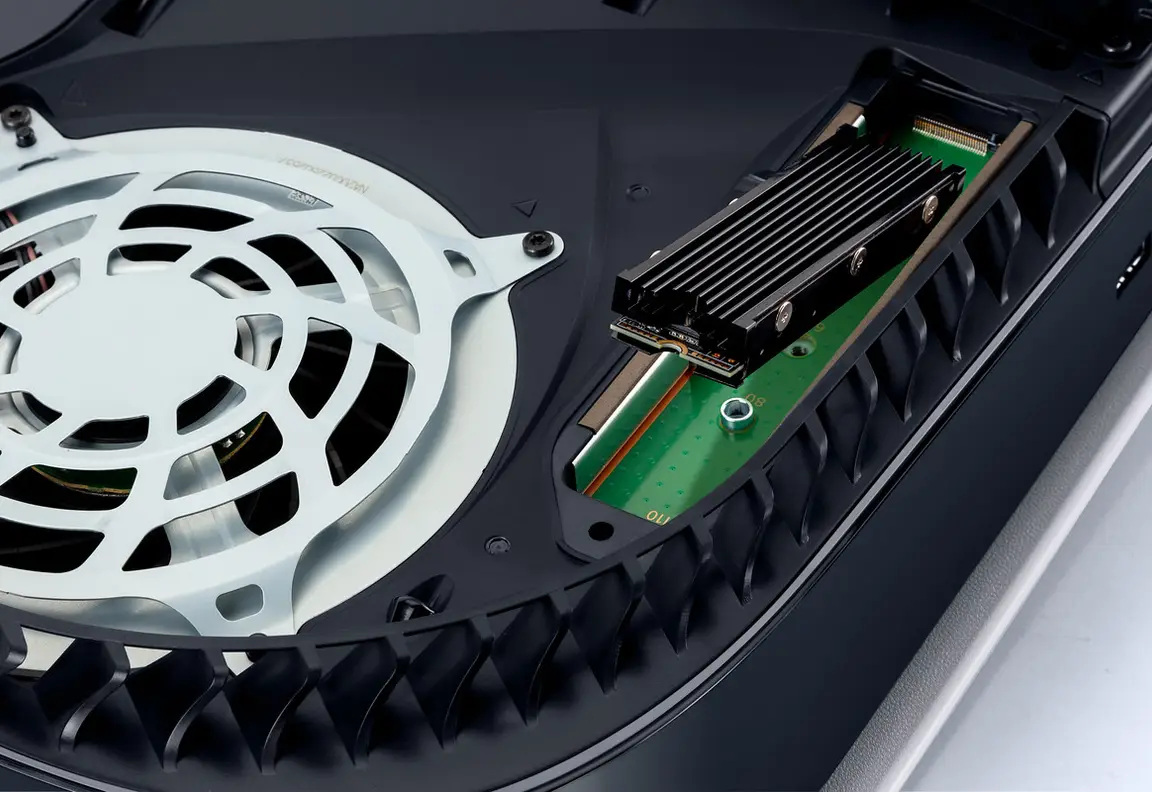
The PS5 has an internal expansion bay for an M.2 SSD, a small stick-shaped drive. Not every M.2 drive works. The drive must be PCIe Gen 4 NVMe, Sony recommends a read speed of 5,500 MB/s or faster, and the drive must have a heatsink, a metal cover that spreads heat away from the drive. Some drives come with one fitted. A drive without one does not meet the requirement, however fast its box says it is.
Installing one means opening a cover and using a screwdriver, but it is a designed, supported procedure. Work slowly, keep the screws safe, and tick each step as you go.
Steps done:
Confirm the drive meets all three requirements
Before you open anything, check for PCIe Gen 4 NVMe, a read speed of 5,500 MB/s or faster, and a heatsink fitted or included. If any one is missing, stop here.
Shut the console down fully and unplug it
Turn the PS5 completely off, not Rest Mode. Unplug the power cable and any other cables, and let the console sit for a few minutes if it is warm. Place it on a clean, flat, well-lit surface.
Remove the cover and the expansion bay lid
Remove the console cover on the expansion bay side, following PlayStation's official instructions for your model. Inside, the bay has a small metal lid held by one screw. Keep that screw somewhere safe.
Seat the drive and set the spacer
Inside the bay, move the small spacer to the mark that matches your drive's length. Insert the drive into the connector at an angle, lower it flat, and fix it with its screw. It should sit flat and firm, not forced and not loose.
Close everything and power on
Replace the bay lid and its screw, refit the console cover, reconnect the cables, and turn the PS5 on. The console will detect the new drive.
Format the drive and check the free space
When prompted, let the console format the new drive. That is expected for a new empty drive. Then go to Settings, then Storage, and confirm the new space is shown.
Warning
Only format a drive when you are sure it holds nothing you need. The PS5 format prompt is for a new, empty expansion drive. If a drive already contains files you care about on another device, it is the wrong drive for this job.
Xbox: Storage Expansion Card, explained and installed
Xbox takes the opposite approach. Series X|S consoles have one dedicated slot on the back made for one type of product: the Storage Expansion Card, made by Seagate and by WD_BLACK, under the name WD_BLACK C50. A card made for that slot plays current-gen games exactly like internal storage. No screws, no covers, no formatting decisions.
The trade-off is choice: you cannot use a spare drive you already own. You buy the card made for the slot, or you free up internal space instead. For GTA VI, what matters is the outcome above: a card in the slot is a proper home for the game, not a parking lot.
Steps done:
Confirm you have the right card
Your card should be a Storage Expansion Card for Xbox Series X|S, made by Seagate or WD_BLACK (the C50). A USB drive is a different thing with different limits, covered in the next section.
Find the dedicated slot on the back
Turn the console so you can see the back panel. The Storage Expansion slot is the single wide slot made for the card, separate from the USB ports and the other connections.
Push the card fully into the slot
Slide the card into the slot in the direction it naturally fits and push it in fully until it seats. It should not need force. If it will not go in, check you have the right slot and the right way up rather than pushing harder.
Confirm the console sees the card
Open My games & apps or Settings, then System, then Storage devices, and confirm the card appears with its available space.
Set your install location, then preload
In storage settings you can choose where new games install by default. If you want GTA VI on the card, set that before preload opens, then follow the Preload Guide when your window arrives.
USB drives: useful, with one hard limit
USB drives cause the most confusion, so here is the rule plainly: on both consoles, a USB drive can store current-gen games, but it cannot play them. Think of USB as a warehouse. Games sit there safely, but to play one you move it back to internal storage, a PS5 M.2 drive, or an Xbox expansion card. Moving back is usually much faster than downloading again, which is what makes USB useful.
The practical plan: in the week before preload, move large games you will not play during launch week to USB. That frees fast storage for GTA VI without permanent deletion. The mistake to avoid is installing GTA VI itself onto USB and expecting it to launch from there on November 19. It will not, and launch morning is a poor time to move 212 GB.
Note
Your ticks on this page are stored only in this browser, on this device. No account exists and nothing is sent anywhere. Reset buttons are provided beside each step list, as they are everywhere on this site that saves progress.
Storage questions
Installing needs temporary working room on top of the game's own size. Clearing about 250 GB gives the download and install room to finish without failing at the last step.
No. USB drives can store current-gen games but cannot play them on PS5 or Xbox Series X|S. Install GTA VI on internal storage, a qualifying PS5 M.2 drive, or an Xbox Storage Expansion Card.
PCIe Gen 4 NVMe, with Sony recommending a read speed of 5,500 MB/s or faster, and a heatsink required. Check all three before you buy or install anything.
Storage Expansion Cards made for the dedicated slot on the back of Series X|S consoles, made by Seagate and by WD_BLACK as the C50. This guide lists no prices and links to no shops.
No. Saves are small compared to game installs. Delete or move large game installs instead, and leave save data alone.
Sources
- Rockstar Games Newswire, official GTA VI announcements: rockstargames.com/newswire
- Rockstar Games Support, Grand Theft Auto VI Pre-Load FAQ (the official 212 GB figure; updated November 3, 2026): support.rockstargames.com
- Store size readings, labeled as readings and not Rockstar figures: VideoCardz, PS5 store manifest 223.09 GB (November 10, 2026); VGTimes, PS5 download data 222.93 GB (November 10, 2026); Xbox store reading 209.86 GiB, about 225 GB (reported November 10 to 11, 2026)
- PlayStation Support, PS5 M.2 SSD requirements and installation: playstation.com/support
- PlayStation Blog, official PlayStation announcements: blog.playstation.com
- Xbox Support, Storage Expansion Card and storage help: support.xbox.com
- Xbox Wire, official Xbox announcements: news.xbox.com
- Take-Two Interactive, publisher information: take2games.com
Related guides
Editions Guide
Standard and Ultimate compared, including what has not been confirmed yet.
Read the guide →